Is AI hairstyle online free?
Check the credits and any current offer shown in your account. Preparing a prompt does not submit a job; generation follows the displayed credit quote for your chosen settings.

Photo prep and controlled comparison
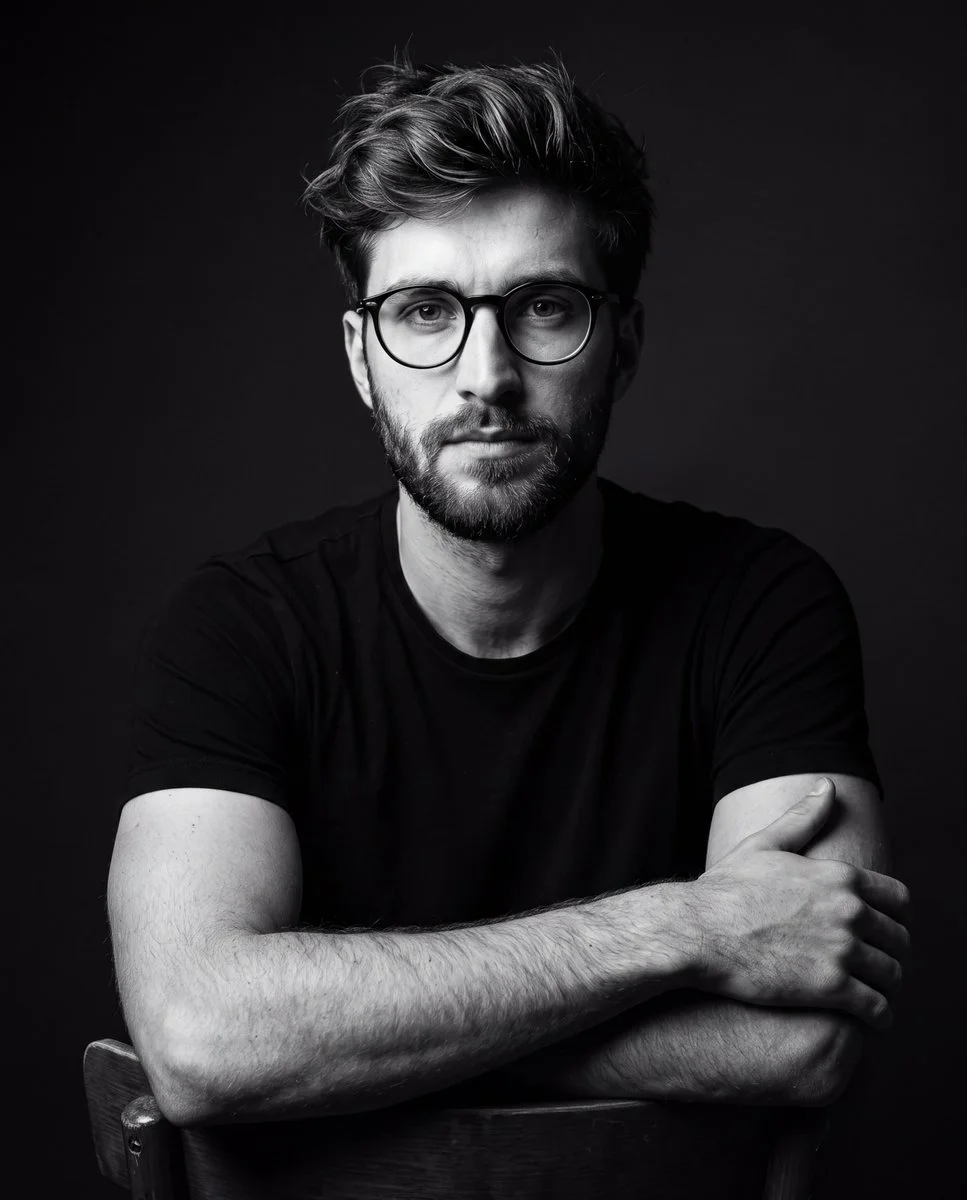
Check the credits and any current offer shown in your account. Preparing a prompt does not submit a job; generation follows the displayed credit quote for your chosen settings.
Choose Image to Image and add one clear portrait. Ask for a defined hairstyle while keeping your face, pose and clothing consistent.
Name the length, fringe, texture and color. Change one of these at a time so each comparison answers a clear question.
Yes. This hairstyle workflow requires one uploaded portrait and a written description of the hairstyle to preview.
Use the credit amount shown beside the generate action for your selected model and settings. Recheck it after changing the image size, model or other options. Your current plan and available balance determine whether you can submit the job.
After submission, follow the job in History. Timing varies with the selected model, image settings and current workload. Wait for the task status to finish rather than assuming a fixed delivery time or submitting the same job again.
An AI hairstyle generator turns a photo and a written haircut brief into a new portrait to compare. Start by uploading one clear portrait of the person whose hairstyle you want to preview. Free use depends on the credits or offer available to your account; review the current quote before generating, then compare the result in History.
Create a hairstyle previewUse this guide to build a consistent portrait collection, with recognizable facial features and a useful profile crop. Start with a visible hairline and one coherent cut, length and texture direction.
A good comparison starts with a question: keep this length but add fringe, smooth the texture, or try a shorter outline? Pick one question for the first job, then refine the version you prefer.
Choose Image to Image for a personal preview. Upload a portrait with visible eyes, the full hairline and both shoulders. Keep the original ready for comparison.
Name a length, fringe, texture and color. Ask to keep the face and other portrait details consistent. Leave out unrelated outfit or background changes for this first test.
Review the available model and image options. Check the quoted credits and your balance before using the generate action. Preparing the request alone does not start it.
Open the completed job in History and compare it with the original. Keep the setting and photo steady, then change only the fringe, length, texture or color for the next version.
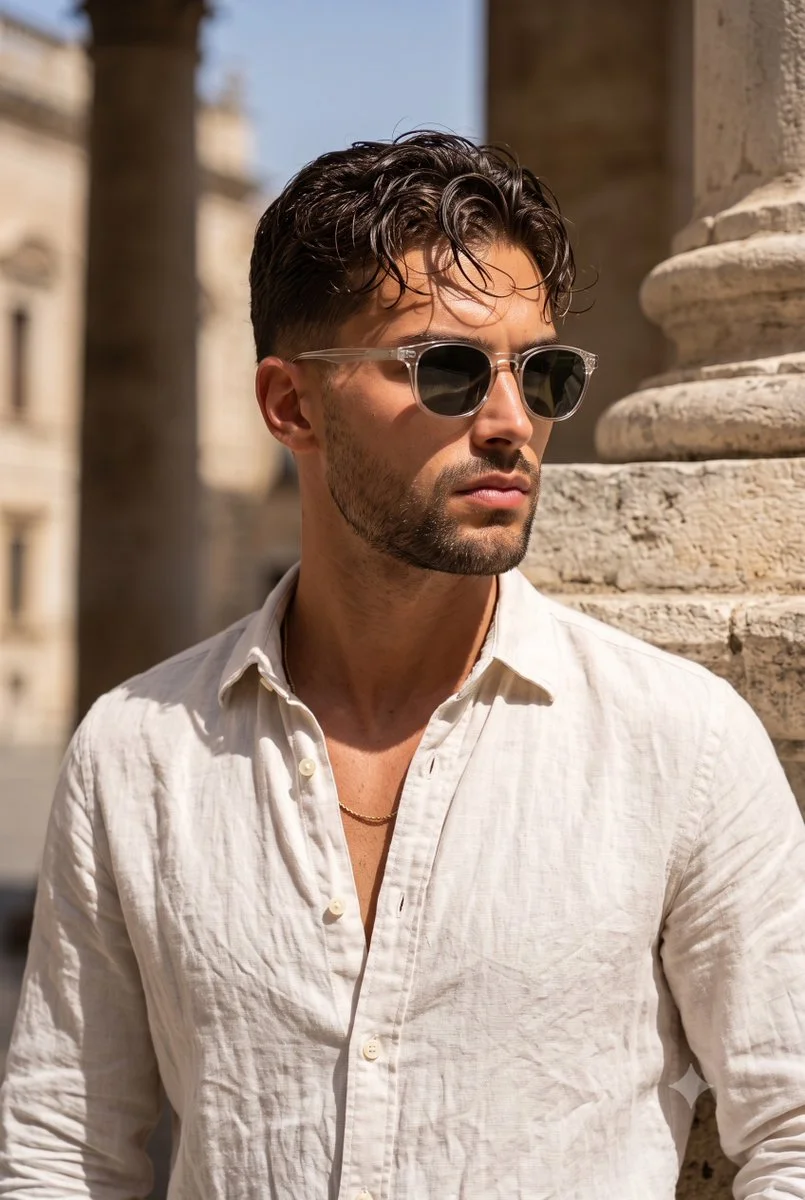
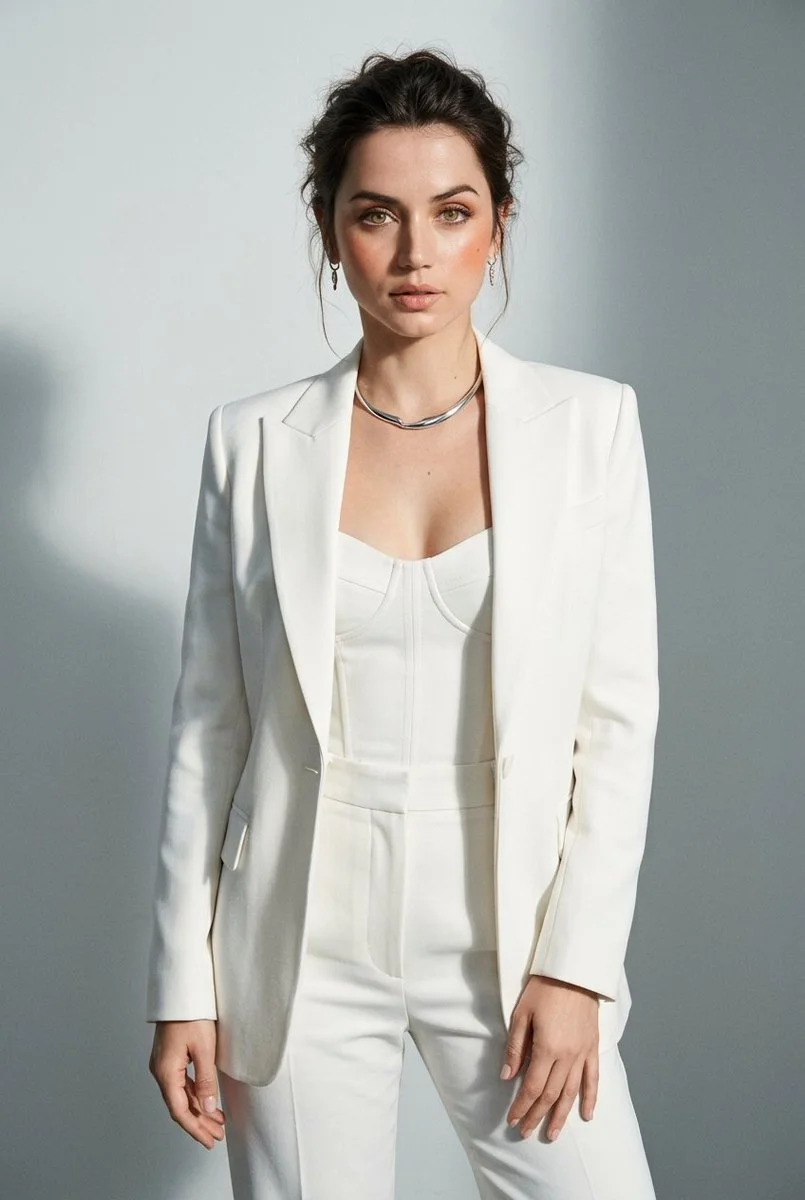
Choose a visible endpoint such as jaw, shoulders or chest. Once the length is clear, decide whether the ends should be blunt, layered or tapered.
Describe curtain bangs, a side fringe or an open forehead. Compare the same length with and without fringe before changing the color.
Use a concrete texture such as smooth straight hair, loose waves or defined curls. Say where you want the volume to sit rather than asking for more style.
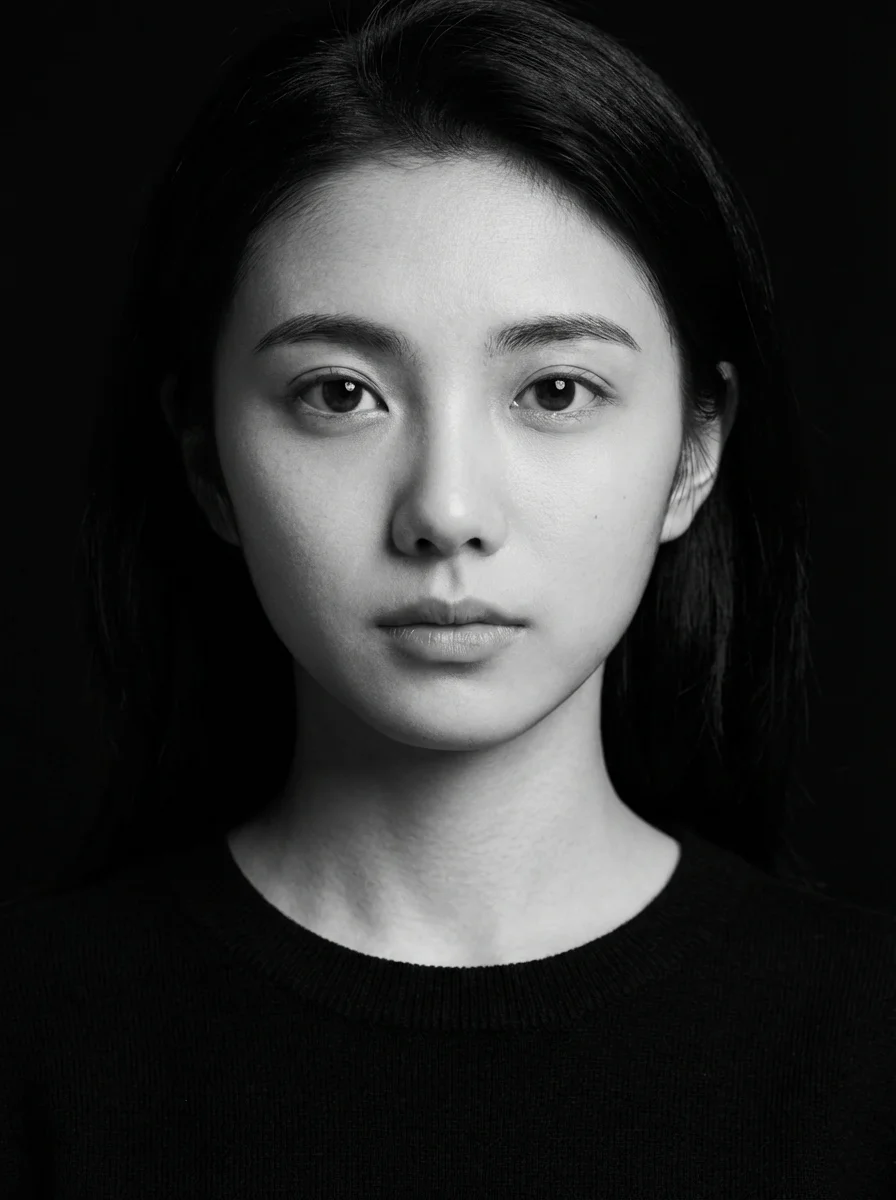
“Using this portrait, create a shoulder-length layered haircut, soft curtain bangs, loose waves and the existing dark brown color. Keep the same face, skin tone, pose, clothing and background. Show a natural hairline and individual strands.”
Treat “shoulder-length,” “curtain bangs,” “loose waves” and “existing dark brown” as four separate choices. Replace one phrase for the next job. Keep the same uploaded portrait when comparing different hairstyle descriptions.
Free use depends on the credits or offer currently available to your account. Sign in, check your balance and read the generator’s current quote before submitting. Choosing a style or editing your prompt does not start a generation.
Use the credit amount shown beside the generate action for your selected model and settings. Recheck it after changing the image size, model or other options. Your current plan and available balance determine whether you can submit the job.
After submission, follow the job in History. Timing varies with the selected model, image settings and current workload. Wait for the task status to finish rather than assuming a fixed delivery time or submitting the same job again.
You can prepare the photo and prompt, then check the account balance, available offer and current quote. Whether you can submit a generation without buying credits depends on what is currently available to your account.
Yes. Upload one clear portrait, then describe the desired hairstyle. This workflow edits a reference image; it does not offer a text-only mode.
Start with the haircut while retaining the original color. Once you choose a length and fringe, compare color in a separate job so you can see which change you prefer.
Yes. Describe the length on top, the sides, parting or fringe, and texture. Use a clear portrait and ask to keep the face, beard and other details you want to retain.
Review a clearer source photo and simplify the request. Ask to retain the original facial features and glasses, then inspect the next completed image before adding other changes.
Open History for task status and completed images. Keep your original and note the prompt choices used for each version so you can compare them consistently.
Choose a portrait and decide whether the first test is about length, fringe or texture. Select Image to Image, write the direction and check the quote before generating.
Create a hairstyle previewaivideo.video · Updated